
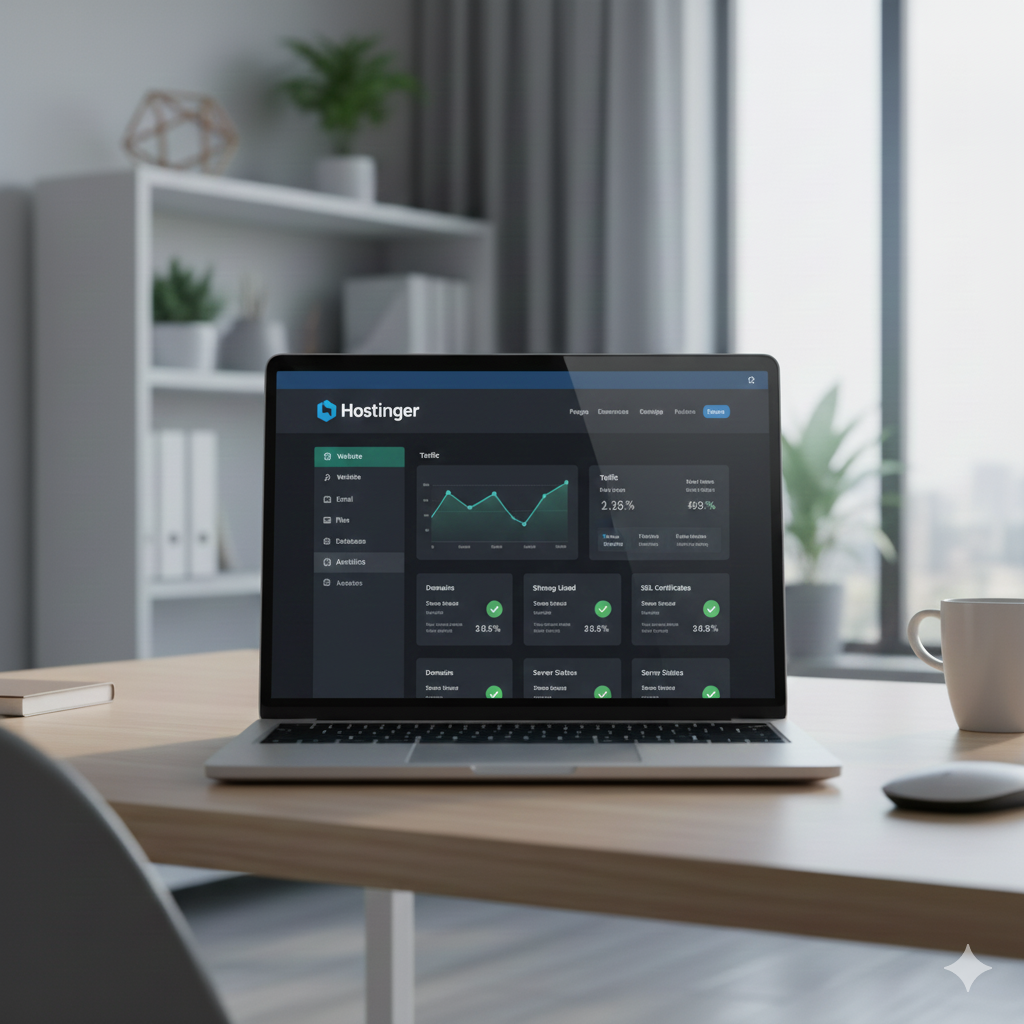
Moving your website to a new hosting provider can feel intimidating, especially if you’re worried about downtime, data loss, or complex technical steps. But with Hostinger, migrating your website is smoother and faster than ever.
In this step-by-step guide, we’ll walk you through the complete migration process to Hostinger in 2026 — ideal for bloggers, businesses, and developers looking for affordable, high-performance hosting.
🟣 Why Choose Hostinger for Website Migration?
Here’s why thousands of users are switching to Hostinger in 2026:
- 🚀 Lightning-fast performance (LSCache, SSD, CDN)
- 🧩 Free Website Migration Tool — no coding needed
- 🤝 24/7/365 expert support
- 💰 Up to 85% off with exclusive deals
- 🌎 Data centers worldwide for faster loading
👉 Try Hostinger with 20–85% Off Deals
🔄 Step-by-Step Guide to Migrating Your Website to Hostinger
✅ Step 1: Create a Hostinger Account
- Visit Hostinger.com
- Choose a hosting plan (Shared, Cloud, or WordPress)
- Use your email or Google account to sign up
- Complete payment and access your hPanel dashboard
✅ Step 2: Request Free Migration (Done-for-You)
Hostinger offers FREE professional website migration for all users.
- In your hPanel, go to Website > Migrate Website
- Fill in your current hosting provider’s login details
- Submit the request — Hostinger’s team will handle the migration
- You’ll receive confirmation once it’s complete
🟢 No downtime. No broken links. No stress.
✅ Step 3: Manually Migrate (Optional for Advanced Users)
If you prefer a hands-on approach:
- Backup your current website (files + database)
- Use File Manager or FTP in hPanel to upload files
- Import your MySQL database using phpMyAdmin
- Update the
wp-config.phpfile with new credentials - Test your site using Hostinger’s preview URL before pointing DNS
✅ Step 4: Update Your Domain DNS
Once migration is done:
- Log into your domain registrar (e.g., GoDaddy, Namecheap)
- Update the nameservers to:
ns1.dns-parking.com ns2.dns-parking.com - It may take up to 24 hours for full DNS propagation
✅ Step 5: Activate SSL & CDN (for Speed & Security)
- Go to hPanel > Website > SSL — install free Let’s Encrypt
- Enable Cloudflare CDN for global performance boost
🧠 Pro Tips for a Smooth Migration
- Use UpdraftPlus or All-in-One WP Migration for WordPress backups
- Test every page after migration to avoid broken links
- Re-submit your sitemap to Google Search Console
- Monitor your uptime using free tools like UptimeRobot
🟢 Benefits of Migrating to Hostinger in 2026
| Feature | Hostinger Offers |
|---|---|
| Free Migration | ✅ Included |
| 99.9% Uptime | ✅ SLA-backed |
| Speed Optimization | ✅ LSCache + CDN |
| Support Availability | ✅ 24/7 Chat |
| AI Website Builder | ✅ New for 2026 |
🎯 Final Thoughts
Migrating your website to Hostinger is a smart move for performance, support, and value in 2026. Whether you’re running a WordPress blog, eCommerce store, or business site — Hostinger makes the switch seamless.